Building A Client's Meso
Build or assign a new meso for a client. It appears on their Train screen, branded as yours.
Step By Step
- Open a client and tap New Meso.
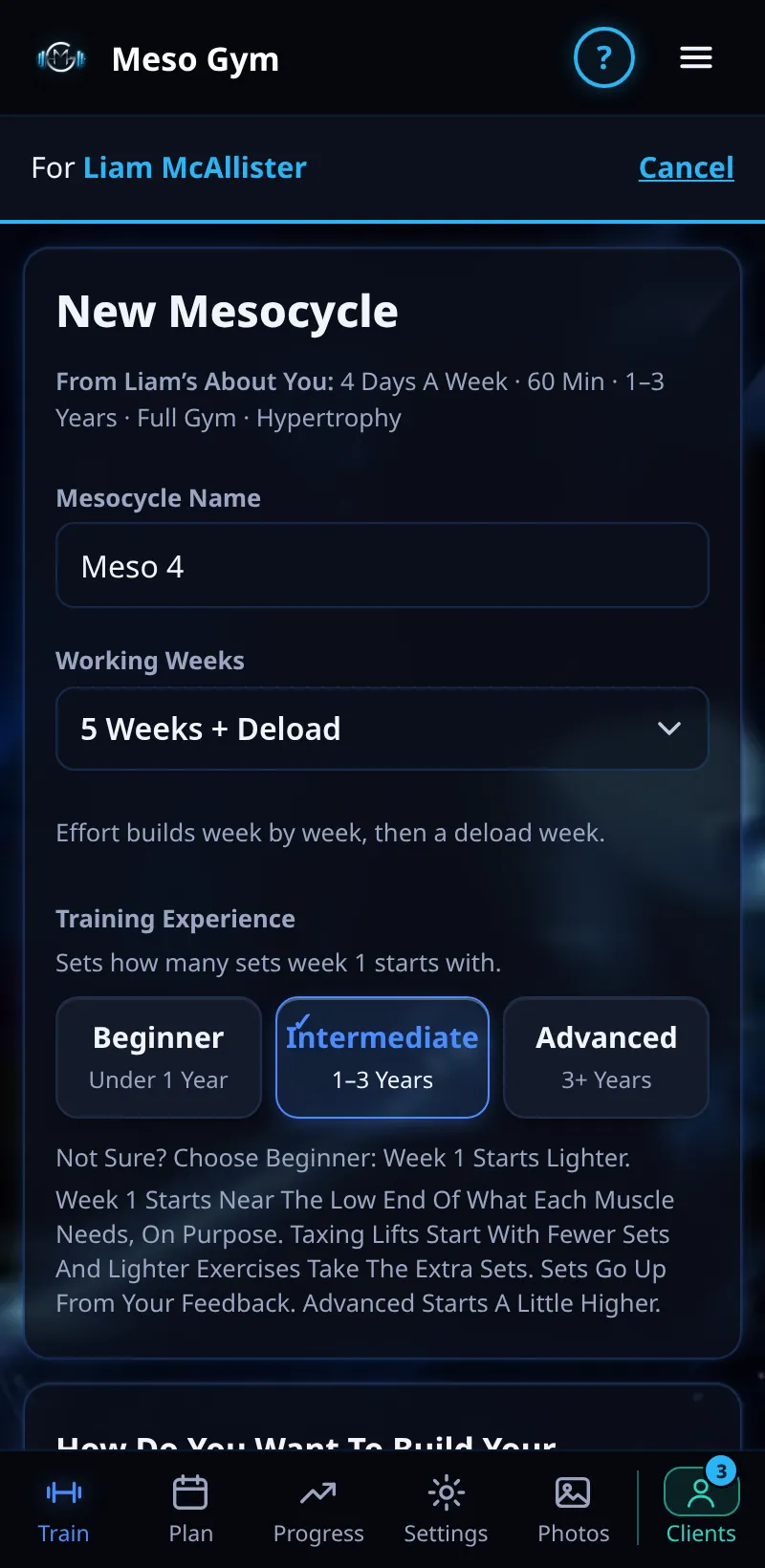
- The builder opens with the client's own About You answers already in: training days, session length, experience, equipment, goal and priority muscles, and their current split as a starter split.
- Start from a template, or build it day by day: pick the days, then the exercises for each day. Change anything you like.
- Choose how many weeks it runs. A deload week is added at the end.
- Check it and tap Create. The client sees it as From your business name on their Train screen.
Good To Know
- Meso Gym is built for hypertrophy: sets and weights progress each week from the client's feedback.
- Home Gym is read as dumbbells. Switch the equipment in the builder if your client has more.
How It Works
Because the builder starts from what the client told you, you skip the back-and-forth of asking how many days they can train or what equipment they have. The Weekly Sets per Muscle table shows week one for every muscle, and a Volume Is Short bar offers a Fix if a muscle is short of sets.
Common Questions
What if the client hasn't filled in About You?
The builder opens with the usual defaults and you choose everything yourself.
Can I change the meso after sending it?
Yes. See Editing A Client's Program, or Open A Client's App.
In the demo, sending a new meso to a client shows Available In Your Trial.