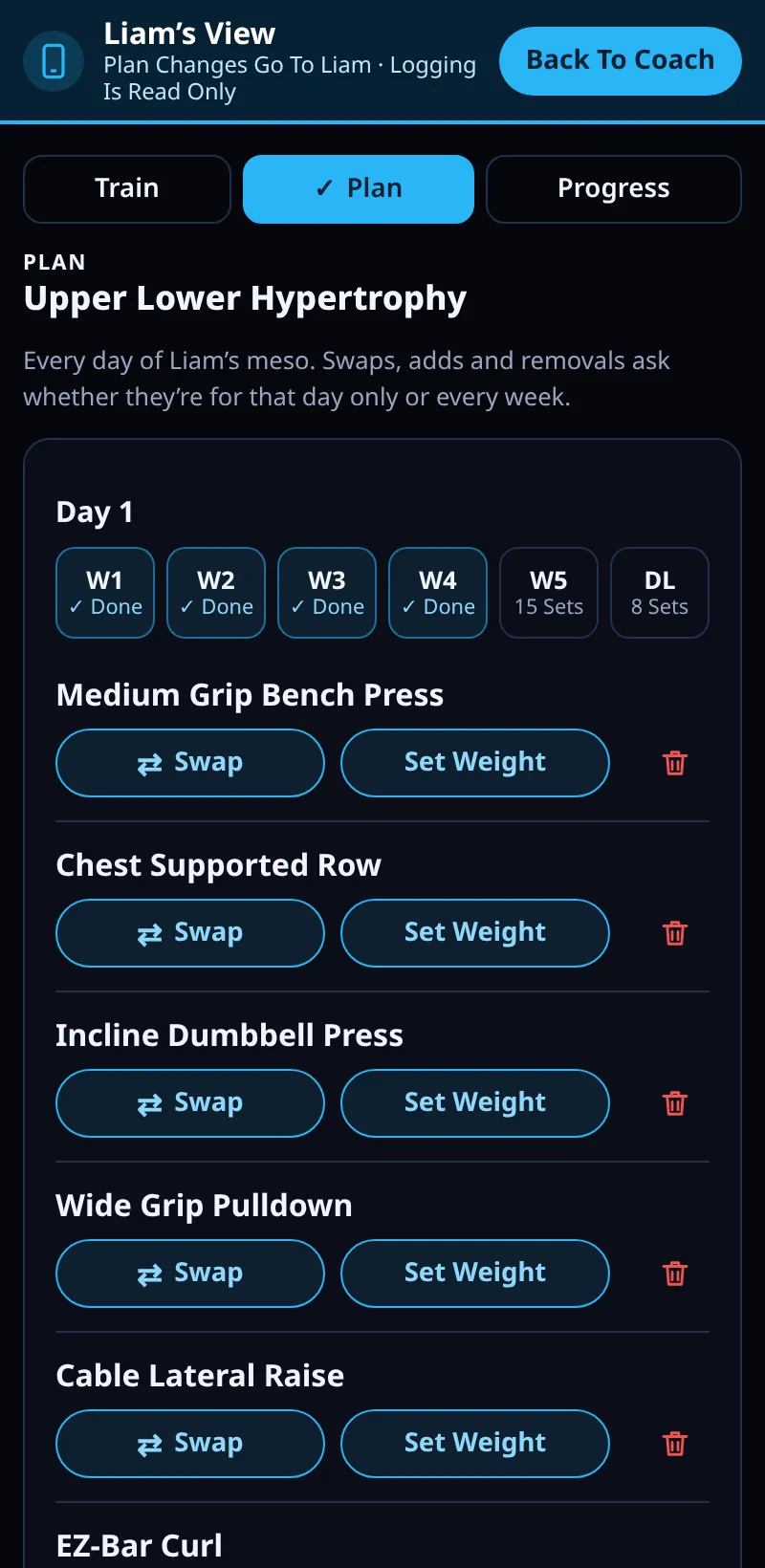
This Day Only Or Every Week
Every change you make to a client's meso can be for one day only, or for every week of it.
Step By Step
- Open a client and tap Edit Their Meso, or use Open Name's App.
- Swap, add or remove an exercise, or move a session to another day.
- Choose Change This Day Only or Change Every Week Of This Meso.
- Changes wait until you tap Send. A weight you set and notes are sent straight away.
Good To Know
- Your client's upcoming days show tags such as Coach Set: 66 kg × 15, Swapped By Coach, Added By Coach and Removed By Coach.
- When a client's own swap is approved, it shows Your Swap · Approved.
How It Works
This Day Only suits a one-off, such as a busy gym or a sore joint. Every Week changes that day for the rest of the meso, so its muscle's weekly sets change too. Either way, workouts your client has already finished never change, and their app keeps progressing from what they log.
Common Questions
Can a client make changes too?
Yes, for today. For the rest of the meso, their app sends you a request.
Does removing an exercise every week lower their volume?
Yes. That muscle gets those sets fewer each week; other exercises keep their plan.
In the demo, saving program changes shows Available In Your Trial.