Programs And Meso Templates
Keep your own meso templates and starter templates ready to customise and assign.
Step By Step
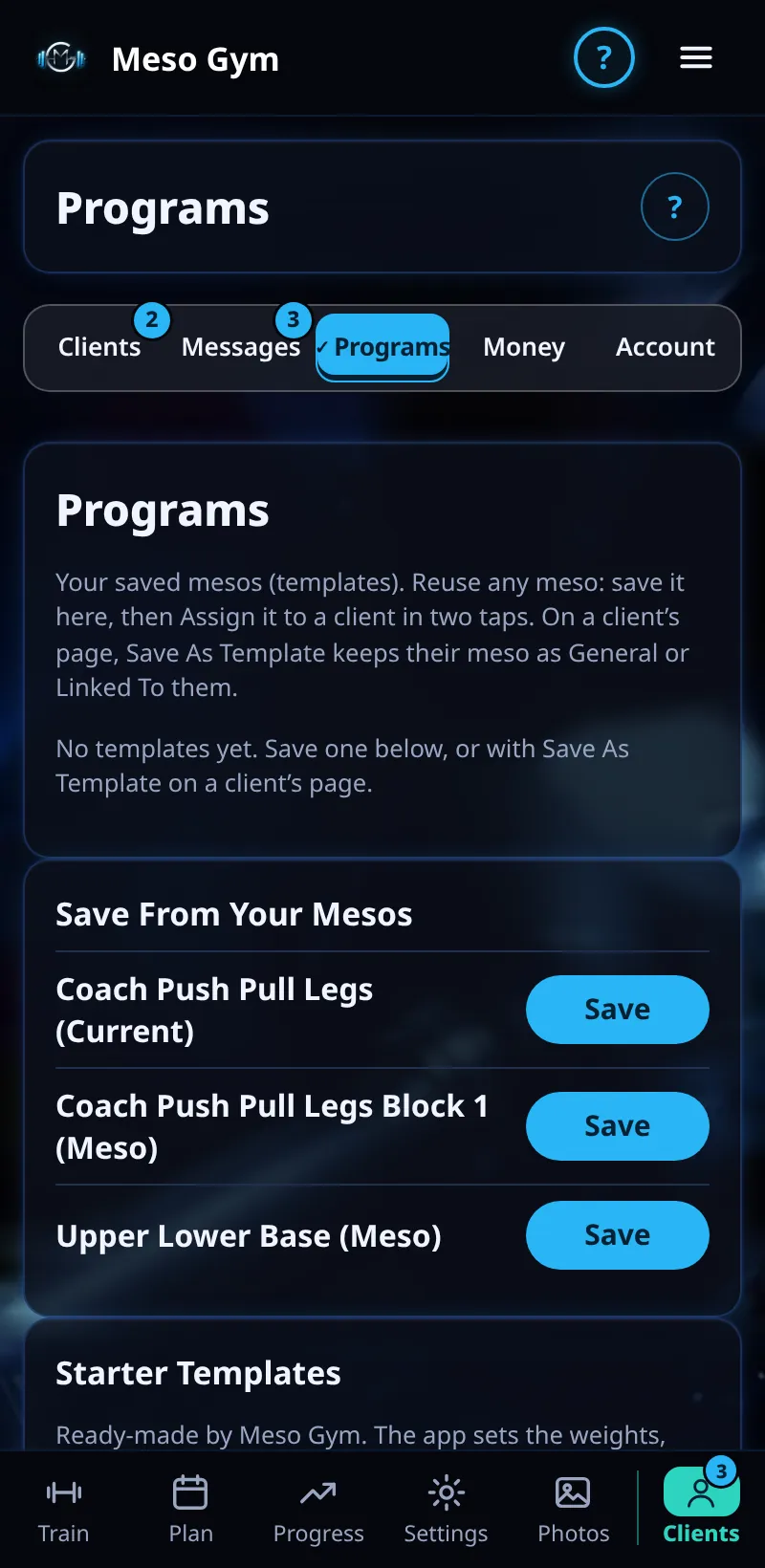
- Open the Programs tab.
- Save From Your Mesos turns any meso you've built into a reusable template. Tap Save.
- Starter Templates are ready-made hypertrophy mesos.
- Tap Customise to change a template's days, exercises or weeks.
- Tap Assign to give it to a client.
Good To Know
- A template can be saved as General, or linked to the client it was made for.
How It Works
Templates save you rebuilding the same split for every client. Assigning a template creates a fresh copy for the client, so later edits to one client's meso never change the template or anyone else's plan. Sets and weights still progress from each client's own feedback.
Common Questions
Do changes to a template update clients already on it?
No. Each client gets their own copy.
Can I start from a client's current meso?
Yes. Save it from Your Mesos and it becomes a template.
In the demo, saving new templates shows Available In Your Trial.