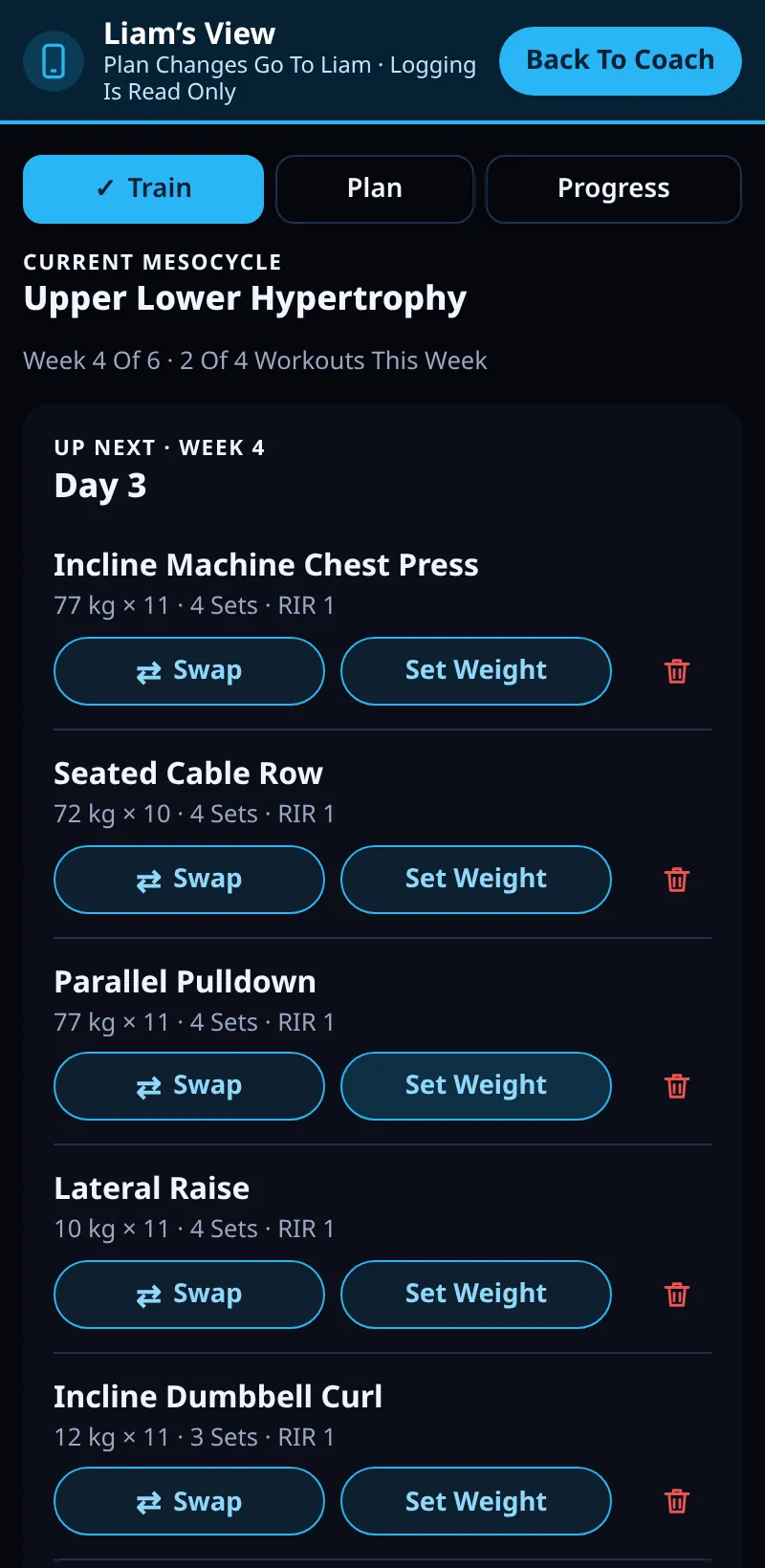
Open Your Client's App
Step into your client's own Train, Plan and Progress screens, and change their plan from there.
Step By Step
- Open a client and tap Open Name's App in the row of buttons.
- A banner shows you're in their view. Use the Train, Plan and Progress tabs, just as they see them.
- Swap, add or remove an exercise. Each change asks Change This Day Only or Change Every Week Of This Meso.
- Hold and drag a session onto another day, or use the session menu, to move it.
- Changes wait in a bar (for example 2 Changes Waiting To Send). Tap Send To Name. Back To Coach takes you out.
Good To Know
- Logging stays with your client: you can't tick their sets.
- A day they've already trained this week shows a note that changes start from their next one.
How It Works
It shows what your client's app shares, so it fills in once they have a meso running with Share With My Trainer on, and it updates when they open Meso Gym. Your changes are the same ones Edit Their Meso makes, so they appear in both places. Their phone applies them with its own rules: finished workouts and logged sets never change.
Common Questions
How is this different from See As Client?
See As Client is a read-only preview. Open Name's App lets you change the plan.
Nothing shows yet.
Your client needs a running meso with sharing on. It fills in after they open the app.
In the demo, sending changes shows Available In Your Trial.