Your Branding
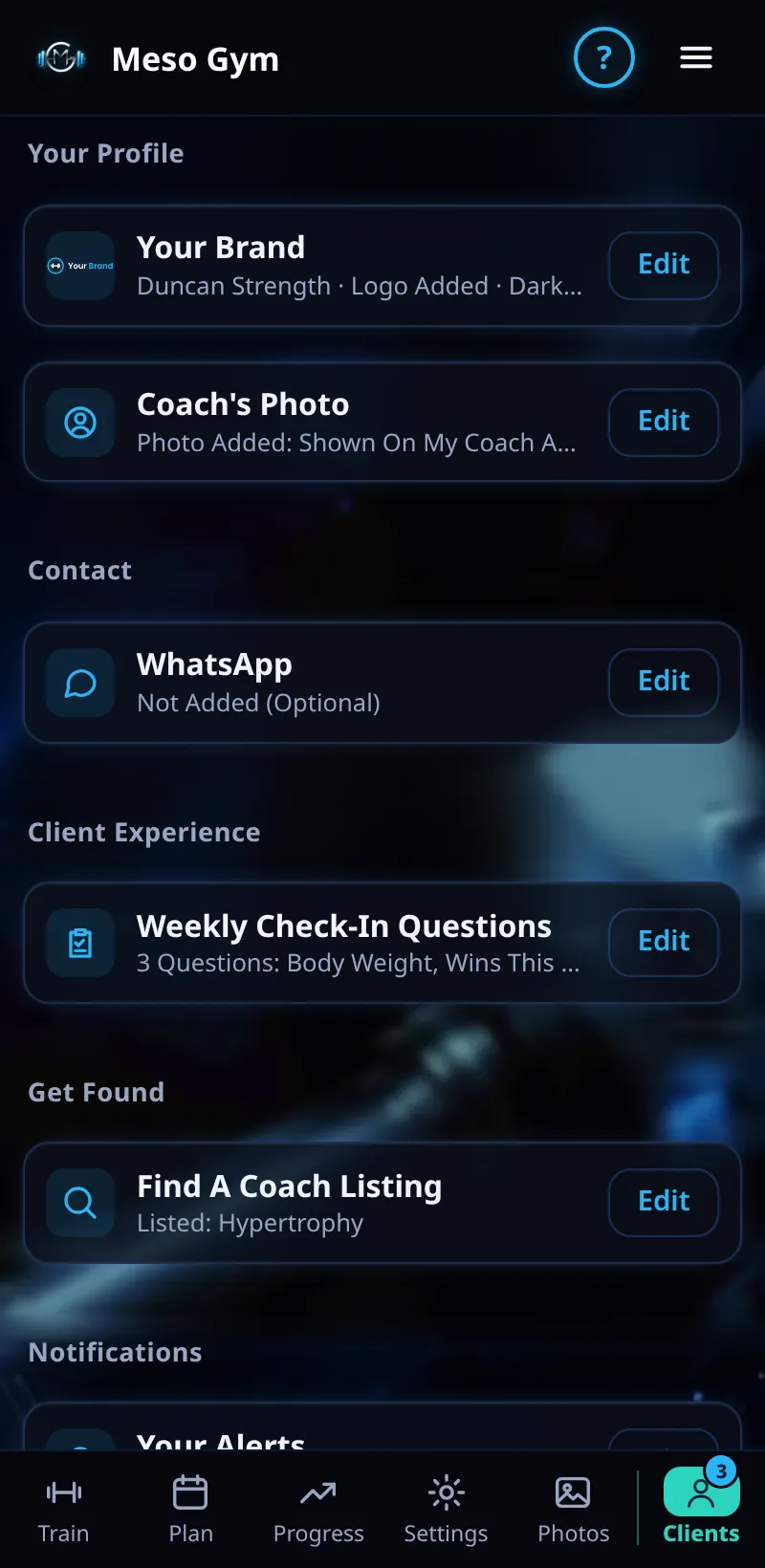
Put your logo, business name and colours in every client's app.
Step By Step
- Open the Account tab.
- Under Your Profile, tap Edit next to Your Brand.
- Add your business name and upload your logo. Crop it to fit.
- Pick your brand colour and theme.
- Save. Your clients see your name and logo at the top of their app, and their mesos show From your business name.
Good To Know
- PNG logos can have a see-through background. For a JPEG logo, the plain background is removed for you.
- Add a Coach's Photo too: it's shown on My Coach and in chat.
How It Works
Your brand also appears on invite pages, invite emails, refund emails and your shared demo, so clients meet your business first. A long business name wraps neatly next to your logo on small phones.
Common Questions
Where else does my brand appear?
On your invite pages and emails, refund emails and your shared demo.
Do clients have to download a different app?
No. They use Meso Gym, shown with your brand.
In the demo, saving branding shows Available In Your Trial.