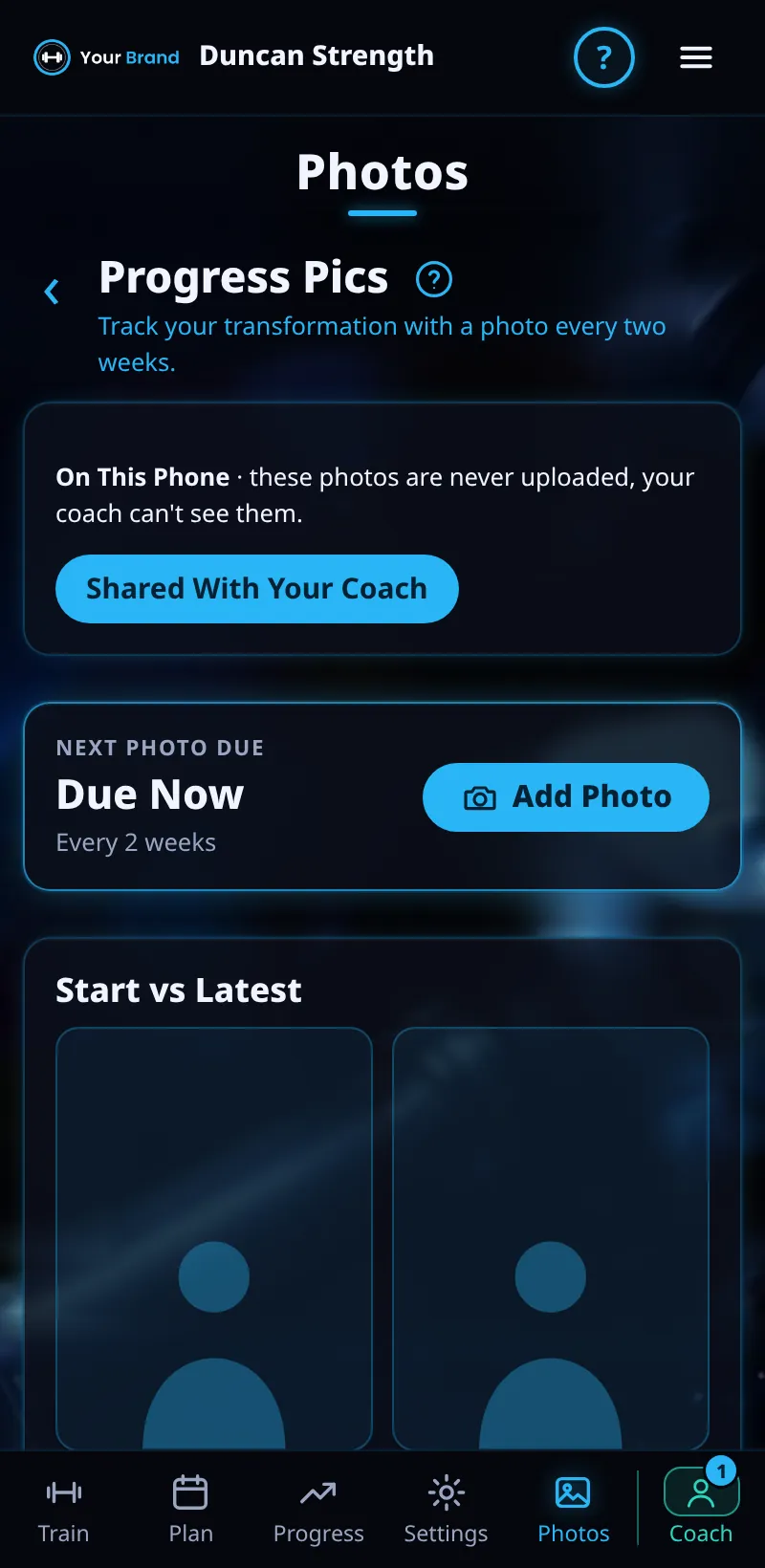
Progress Photos
Take front, side and back photos to see your change over time.
Step By Step
- Open Progress › Body, then Progress Photos (or the Photos tab).
- Tap Add Photo. The first time, Meso Gym explains why before your phone asks for camera and photo access.
- Take a photo for each pose, or Choose From Gallery. Flip switches camera.
- Compare Start vs Latest, or tap a photo to see it full screen or delete it.
Good To Know
- A photo every two weeks is plenty: the next one is due 14 days after your last.
- Training on your own? Photos stay on this phone. Coached? Only you and your coach can see them.
How It Works
Photos show the change over a meso that the mirror misses. They're compressed to save space. Photos kept on your phone are never uploaded and aren't in the backup file.
Common Questions
I tapped Not Now on the explainer.
That's fine: it shows again next time you add a photo.
Photo access is off.
Open your phone's Settings (or browser site settings) and allow camera and photos for Meso Gym.
In the demo, saving photos shows Available In Your Trial.
Clients get this in the app their coach invites them to. Coaches can see it the way a client does with See As Client in Demo PT.