See As Client
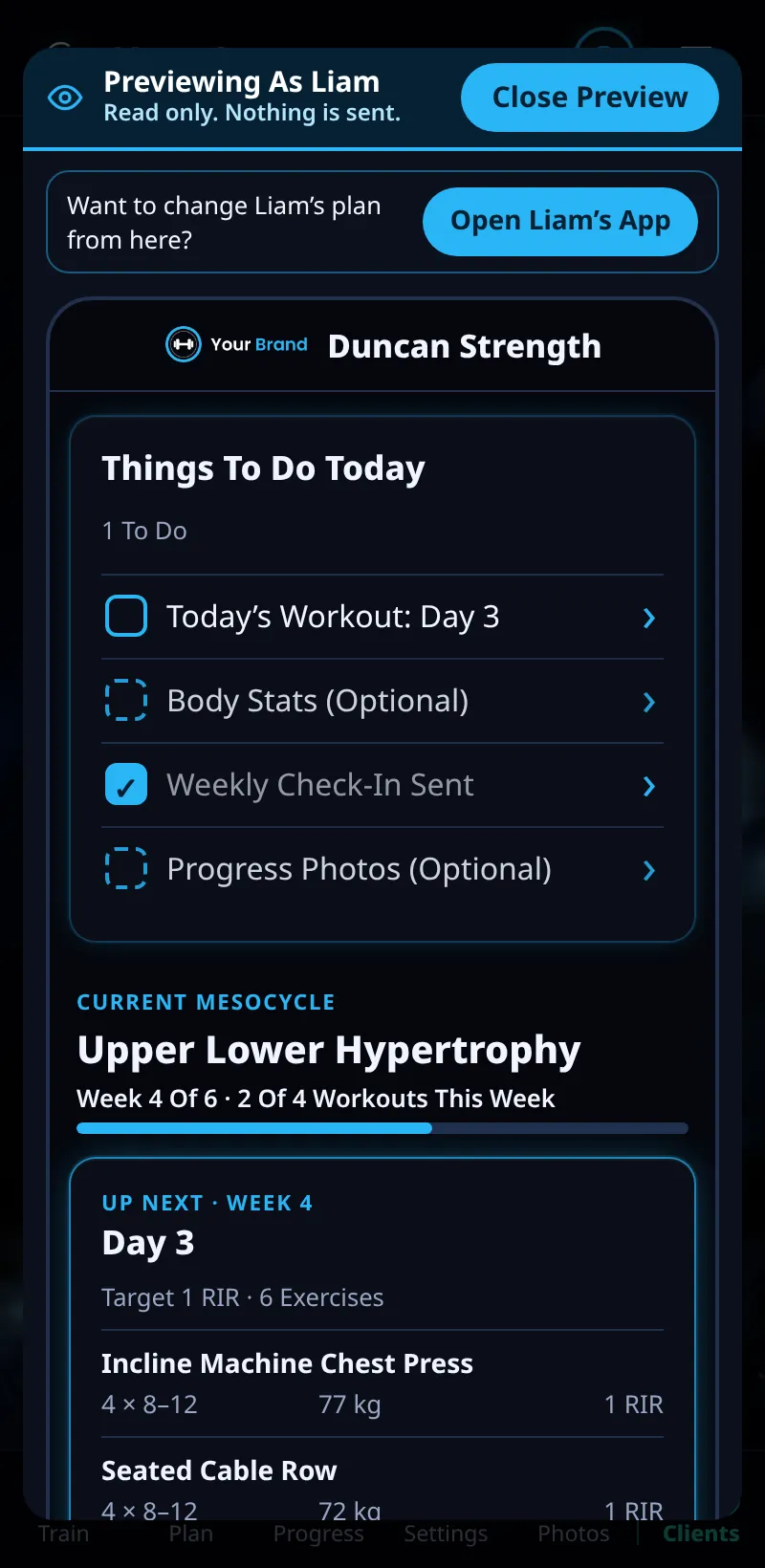
Open the app exactly as your client sees it, to check their plan, their to-do list and your branding.
Step By Step
- Open a client from the Clients tab.
- Tap See As (for example See As Liam).
- You now see their Train screen, their Things To Do Today and their meso, with your branding, just as they do.
- Nothing you look at is changed. Tap the banner at the top to go back to your own view.
- Want to change their plan from here? Use Open Name's App instead (see Open A Client's App).
Good To Know
- In Demo PT, open Liam (or any client) and tap See As to try it.
How It Works
See As is the quickest way to answer a client's question about what they see, or to check that your logo, colours and welcome look right on a phone. It's read-only on purpose, so you can look around freely without any risk of logging a set or changing their meso.
Common Questions
Does the client know I looked?
No. Looking doesn't change anything or send anything to them.
Can I log a workout for them?
No. Logging always stays with the client.