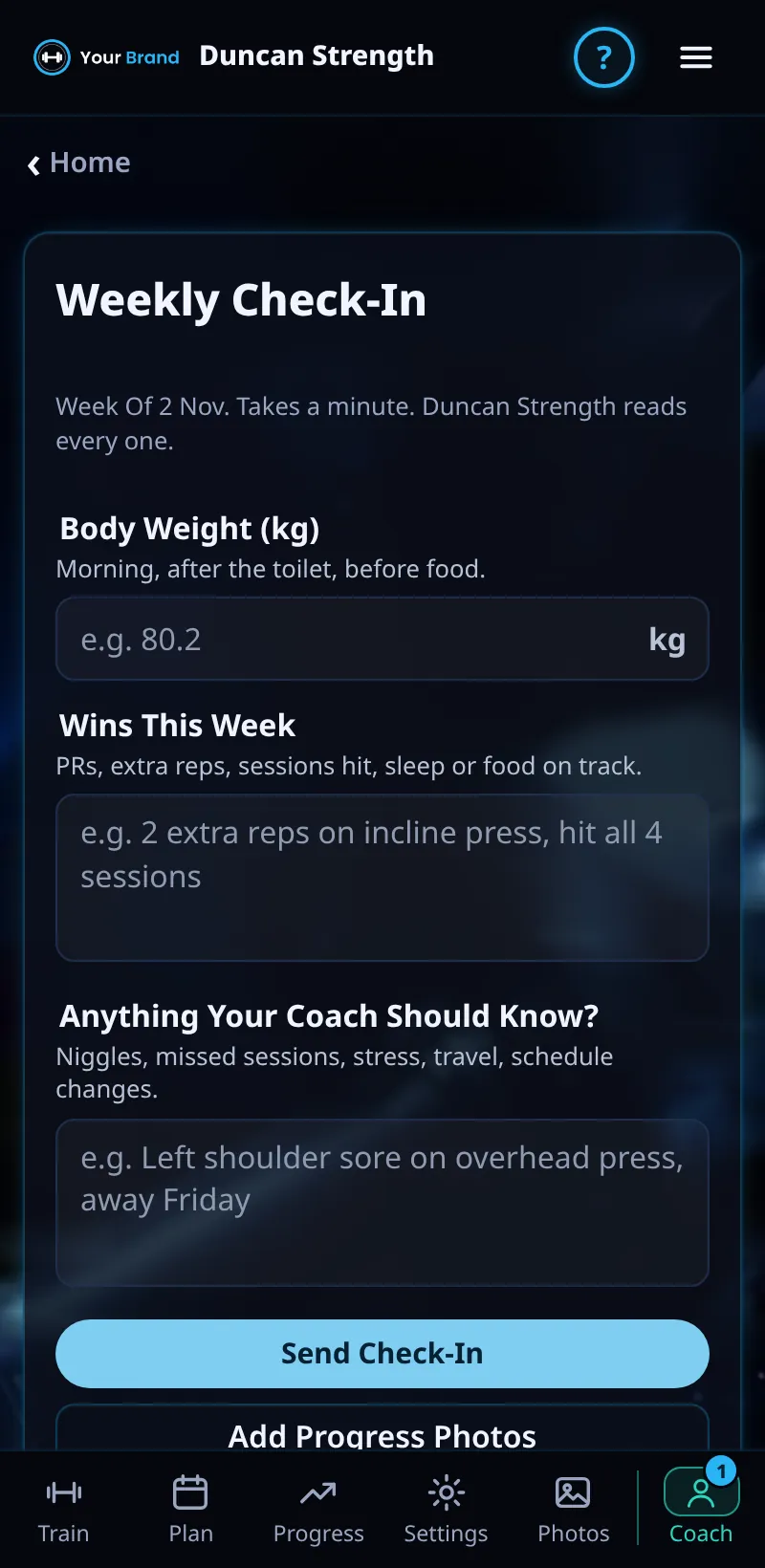
Weekly Check-In
Log how your week went: scores, answers and optional photos. If you have a coach, they see it too.
Step By Step
- On the Train tab, tap Weekly Check-In under Things To Do Today.
- Enter your Body Weight in your own unit (kg or lb).
- Score each question from 1 to 5 and answer any written questions.
- Tap Send Check-In.
- Check-In Sent offers Back To Training, View Past Check-Ins and Add Progress Photos.
Good To Know
- Past Check-Ins lists the weeks you've already sent, newest first.
How It Works
Use the check-in as your own weekly review. If you have a coach, they read it next to your training, so honest answers help them decide whether to push on or ease off. The questions may be your coach's own, and they may change from time to time.
Try to send it on the same day each week, so your coach can compare like with like. If you have something to add that doesn't fit the questions, send it in Messages.
Common Questions
I missed a week.
Send it when you can. If you have a coach, they see No Check-In Last Week until then.
Does my coach see my body weight in kg?
If you have a coach, they see it in the unit you used.
In the demo, sending check-ins shows Available In Your Trial.
Clients get this in the app their coach invites them to. Coaches can see it the way a client does with See As Client in Demo PT.