Reviewing Check-Ins
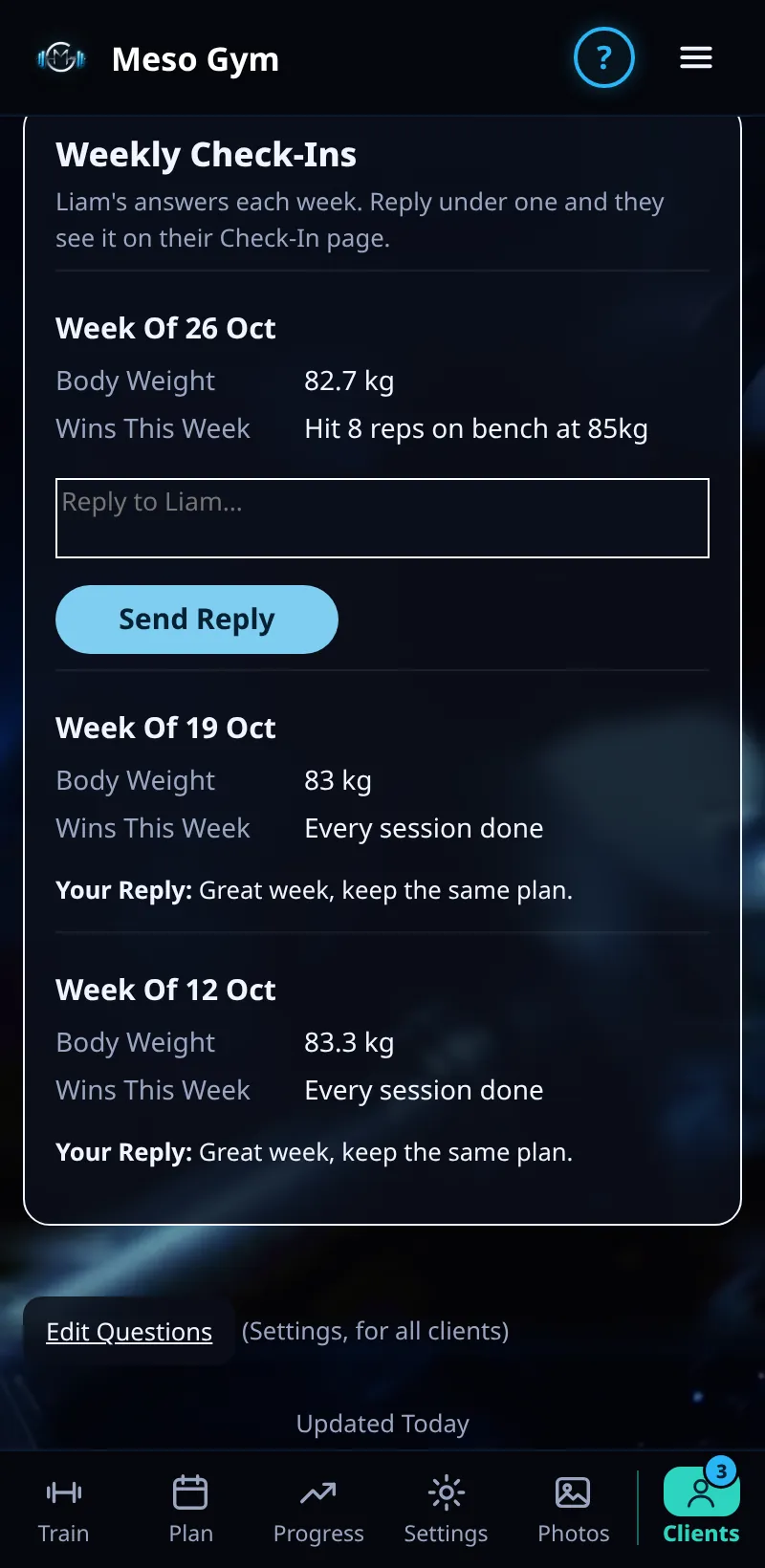
Read each client's weekly check-in: scores, answers, body stats and progress photos.
Step By Step
- Open a client and tap the Check-Ins tab.
- Each week shows their scores and answers to your check-in questions.
- Body weight is shown in the unit the client uses (kg or lb).
- Body stats and progress photos sent with the check-in are shown with it.
- Reply from Messages to give feedback on the week.
Good To Know
- Set your own questions in Account › Client Experience › Weekly Check-In Questions.
- A client who didn't check in last week shows under Needs Attention as No Check-In Last Week.
How It Works
Check-ins are a weekly snapshot of how training and life are going. Reading them next to the Progress tab helps you decide whether to push on, hold, or ease off.
Common Questions
Can I change the questions mid-meso?
Yes. New questions appear in the client's next check-in; earlier answers stay as they were.
Do clients see my reply?
Yes, in their chat with you.