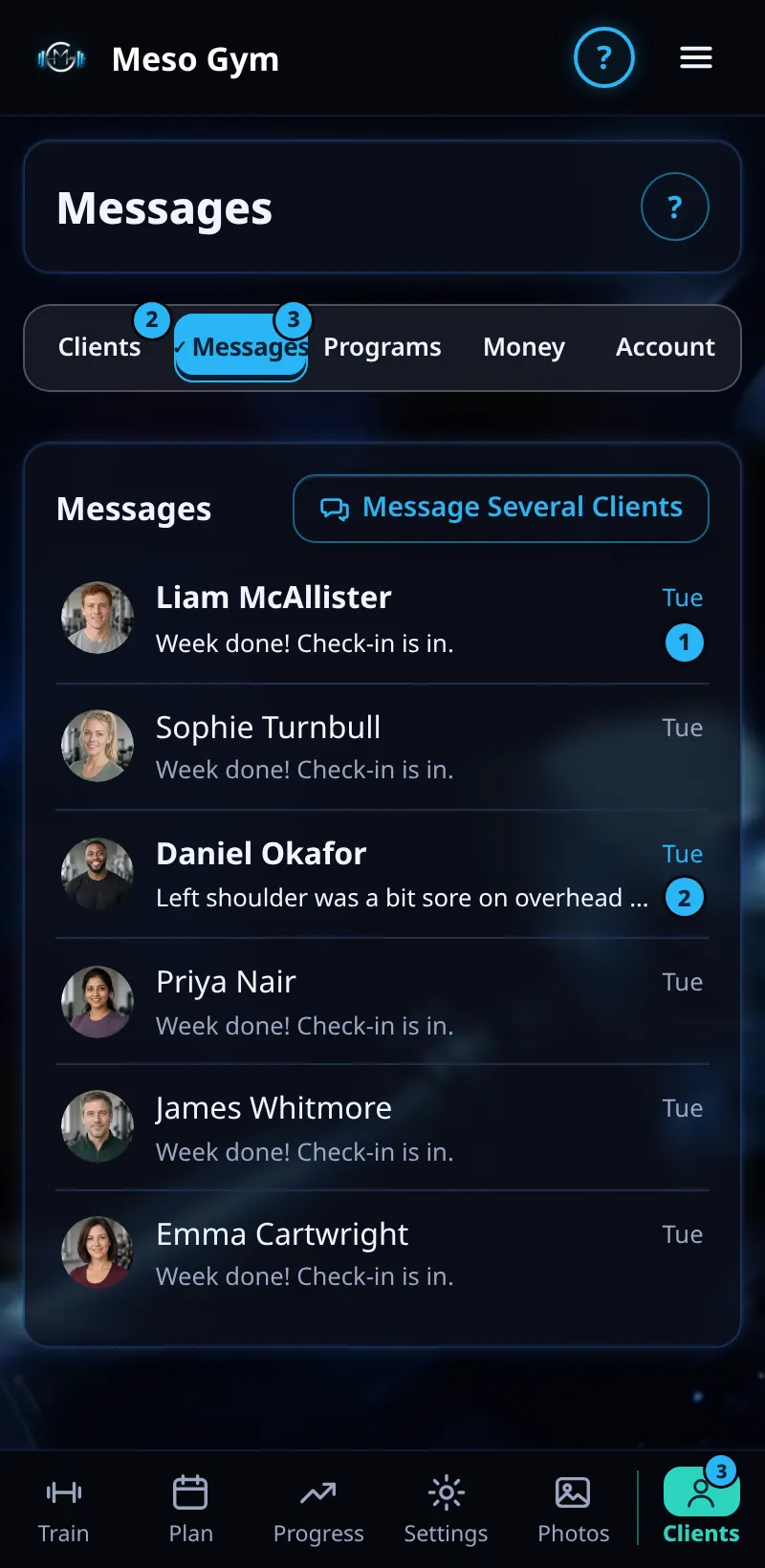
Messages
Chat with each client inside the app: text, photos and replies to their check-ins and form checks.
Step By Step
- Open the Messages tab. Unread conversations show a number.
- Tap a client to open the conversation.
- Type your message and tap Send. With the box empty, the microphone records a voice note instead.
- Use the buttons at the top of the chat for Video Call and Form Checks.
- Tap the client's photo in the chat header to open their client page.
Good To Know
- Clients who check in or log pain often send a note with it, so Messages is the quickest way to reply.
- Message Several Clients at the top of Messages sends one message to many clients, each in their own chat.
How It Works
Each message shows ticks: one when it's sent and two when it's delivered. When the client has read it, their small round photo appears under the latest message they've seen. Community Rules explains what is and isn't allowed in chats.
Common Questions
Can clients message each other?
No. Each chat is just you and one client.
Do clients get a notification?
Yes, if they've turned notifications on.
In the demo, sending messages shows Available In Your Trial.