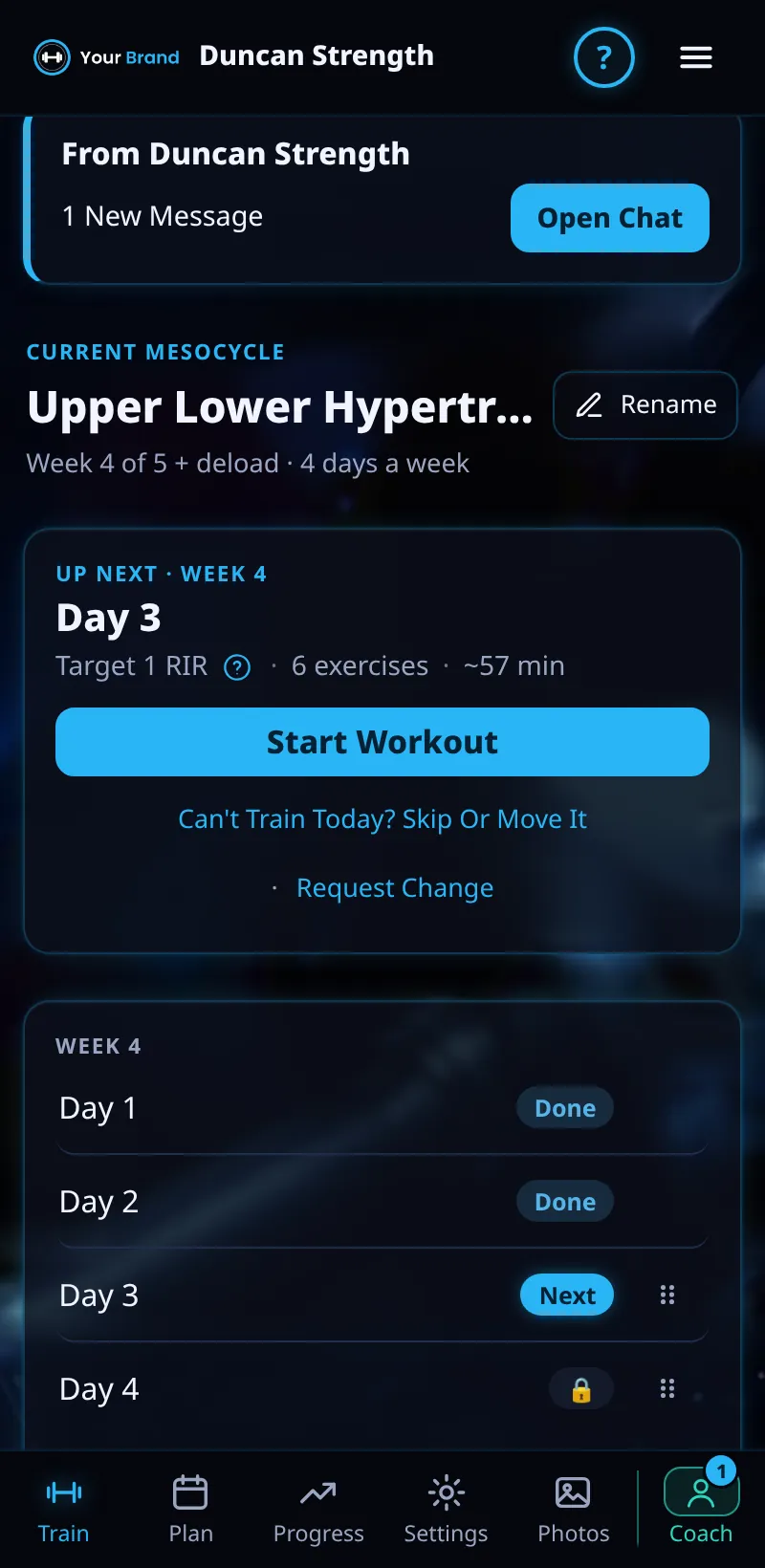
Your Coach's Meso
Your coach builds your meso. It shows on your Train screen with their name.
Step By Step
- Open the Train tab. Your meso shows From your coach's business name.
- The Weeks grid shows what's done and what's next. Tap a locked day for a read-only preview.
- Tap Request Change to ask your coach to change something.
- Tap Mesos on your coach's page to see every meso they've sent you.
Good To Know
- Upcoming days show tags when your coach changed them, such as Swapped By Coach, Added By Coach, Removed By Coach or Coach Set.
How It Works
Your coach plans the meso; your logged sets and feedback still drive how it progresses week to week. When your coach changes a day, the change appears in your app after they send it, and workouts you've already finished never change.
Common Questions
Can I swap an exercise myself?
Yes, for today. For the rest of the meso, your coach decides.
Why does a later week look different now?
Later weeks are a forecast that your feedback, and your coach, shape.
Clients get this in the app their coach invites them to. Coaches can see it the way a client does with See As Client in Demo PT.