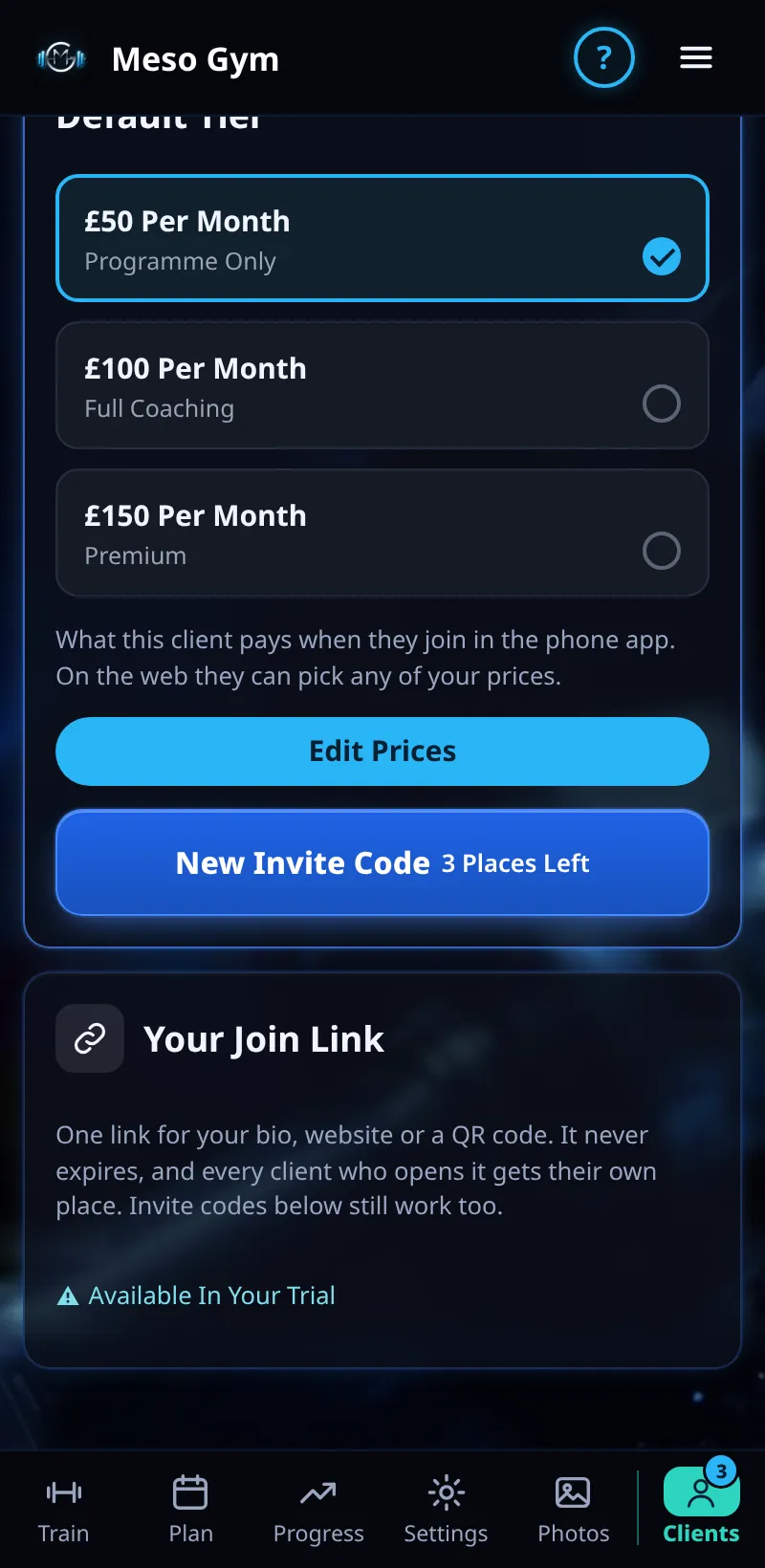
Your Join Link
One link for your bio, website or a QR code. It never expires, and every client who opens it gets their own place.
Step By Step
- Open the Clients tab and tap Invite Client. Your Join Link is at the top.
- Tap Copy Link or Share.
- Choose a Default Tier, or leave it on Client Picks.
- Opened By shows how many people have opened it.
- Use Turn Off to pause it, or Replace Link to make a new one.
Good To Know
- Replacing the link stops the old one straight away. Clients who already joined stay.
- Invite codes still work alongside your join link.
How It Works
People who open the link see a Join page with your name, then go through your coaching agreement, choose a tier (or get your Default Tier) and pay. A Default Tier applies in the phone app; on the web a client can still pick any of your prices. While the link is off, nobody new can join with it.
Common Questions
Does a new client use one of my places?
Yes. Each client who joins takes a place on your plan.
Can I have more than one link?
You have one join link. Use invite codes for one-off invites.
In the demo, sharing invites shows Available In Your Trial.