Logging Sets
Log the weight and reps of every set. Meso Gym suggests what to lift next.
Step By Step
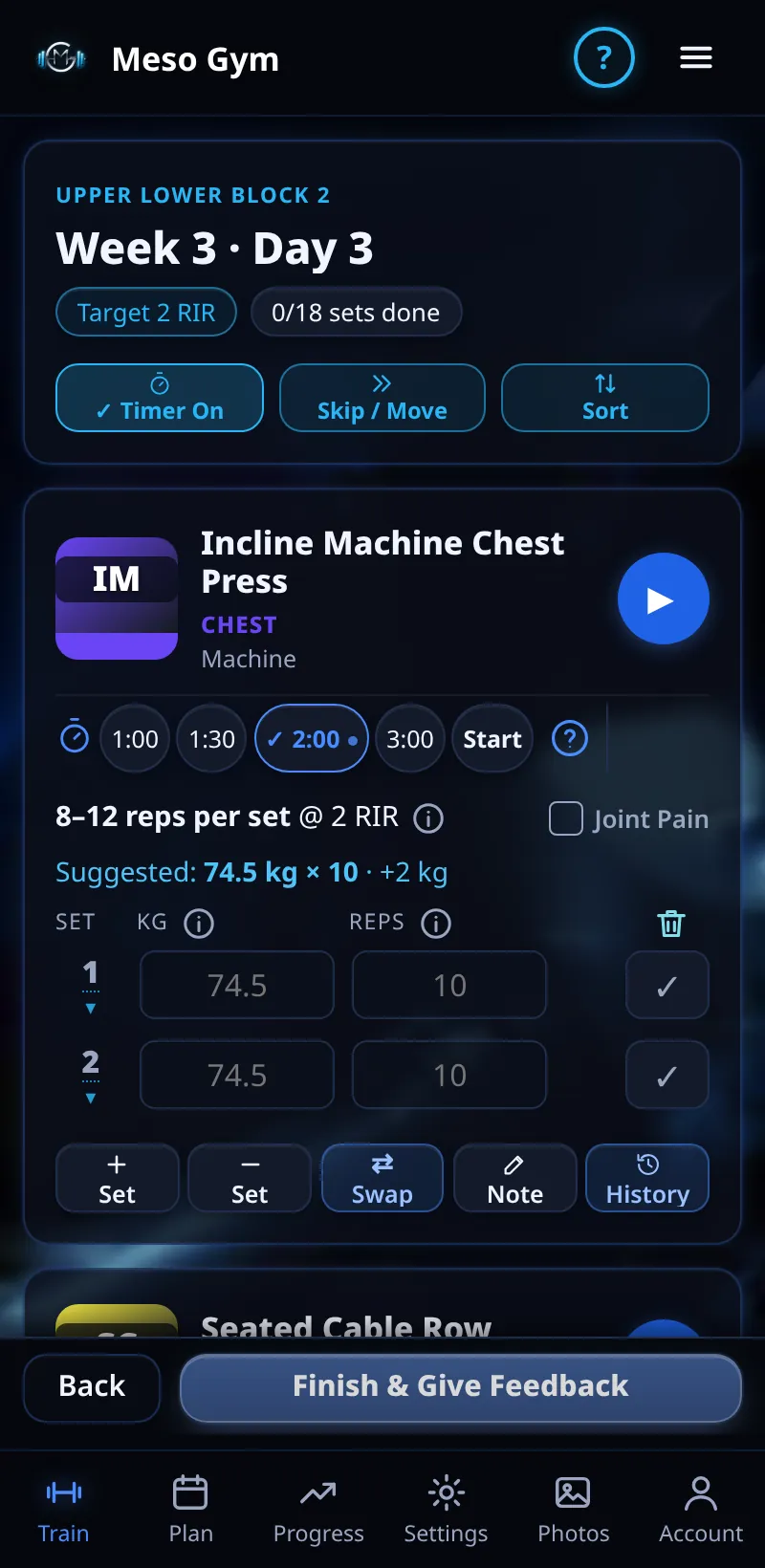
- In your workout, each exercise shows its sets with a suggested weight and reps in grey, the rep range and this week's RIR target.
- Do the set, type what you actually lifted, then tap the tick to log it. If you did exactly the grey numbers, just tick.
- The first weight you type fills in the other sets you haven't filled yet.
- Can't do a set? Tap its tick and choose Skip Set. ↺ brings it back.
- When every set is ticked or skipped, tap Finish & Give Feedback.
Good To Know
- Your target effort (RIR, reps in reserve) is shown for each week.
- Tap a set's number to make it a Myorep, Myorep Match or Drop Set.
How It Works
Once ticked, a small arrow compares the set with the same set last time: up, level or down. Tap it to see what you did then. The card also has + Set and − Set, Swap, Note (a reminder shown every time the exercise comes up) and History. From week two on, weights go up by themselves when you hit your reps.
Common Questions
Does ticking a set start the rest timer?
No. Press Start on the card when you want rest timed.
What if I'm new to an exercise?
The How To Choose Your Starting Weight bar walks you through a quick warm-up to find a working weight.