Moving A Day

Move a session to another day of the week, for this week or every week from now.

Step By Step

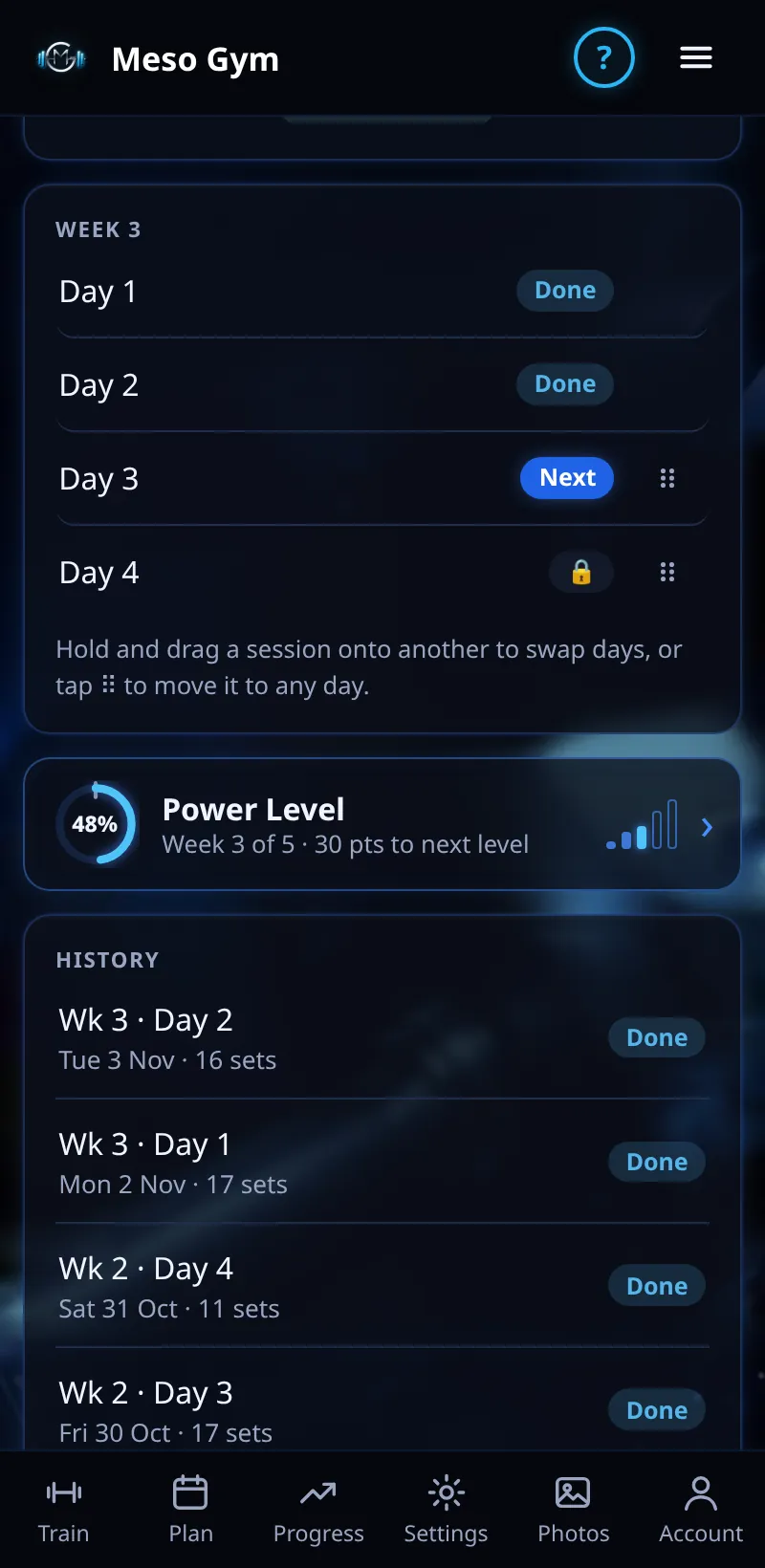
  1. On the Train tab, the This Week card lists your sessions.
  2. Hold and drag a session onto another to swap their days.
  3. Or tap ⠿ next to a session to open Move To Another Day.
  4. Pick a weekday, then This Week Only or Every Week From Now.
  5. Tap Swap With or Move To confirm, or Cancel.

Good To Know

  • Finished, skipped and started sessions stay where they are.
  • Moving a day works on every plan, with or without a coach.

How It Works

Your sessions keep their order and progression; only the weekday changes. If the day you pick already has a session, the two swap places. Coaches see the same week list in their view of you, so they can move a day for you too.

Common Questions

Can I move a session to a day that already has one?

Yes. They swap days.

Will it change my weights?

No. Only the day changes.
Try It In The Demo

Moving A Day in the Meso Gym app (demo data)
Shown with demo data.

More In Training Day

Things To Do TodayYour list for today: your workout, your weekly check-in, and optional body stats and photos.Starting A WorkoutStart today's workout and tell the app how sore you are, so it can set your volume.Logging SetsLog the weight and reps of every set. Meso Gym suggests what to lift next.Skip Or Move A WorkoutCan't train today? Skip the workout or move it to another day.Swapping An ExerciseSwap an exercise for today, or for the rest of the meso. If you have a coach, ask them for the rest.Logging Joint PainTell the app when a lift hurts a joint. If you have a coach, they also see the report.Feedback After A WorkoutA few quick questions after each workout set next week's sets and weights.Rest And Interval TimerA rest timer between sets, and an interval timer you can turn on in Settings.Sort ExercisesChange the order of exercises in a workout.Add Or Remove An ExerciseAdd an exercise or remove one, today only or for the rest of the meso.